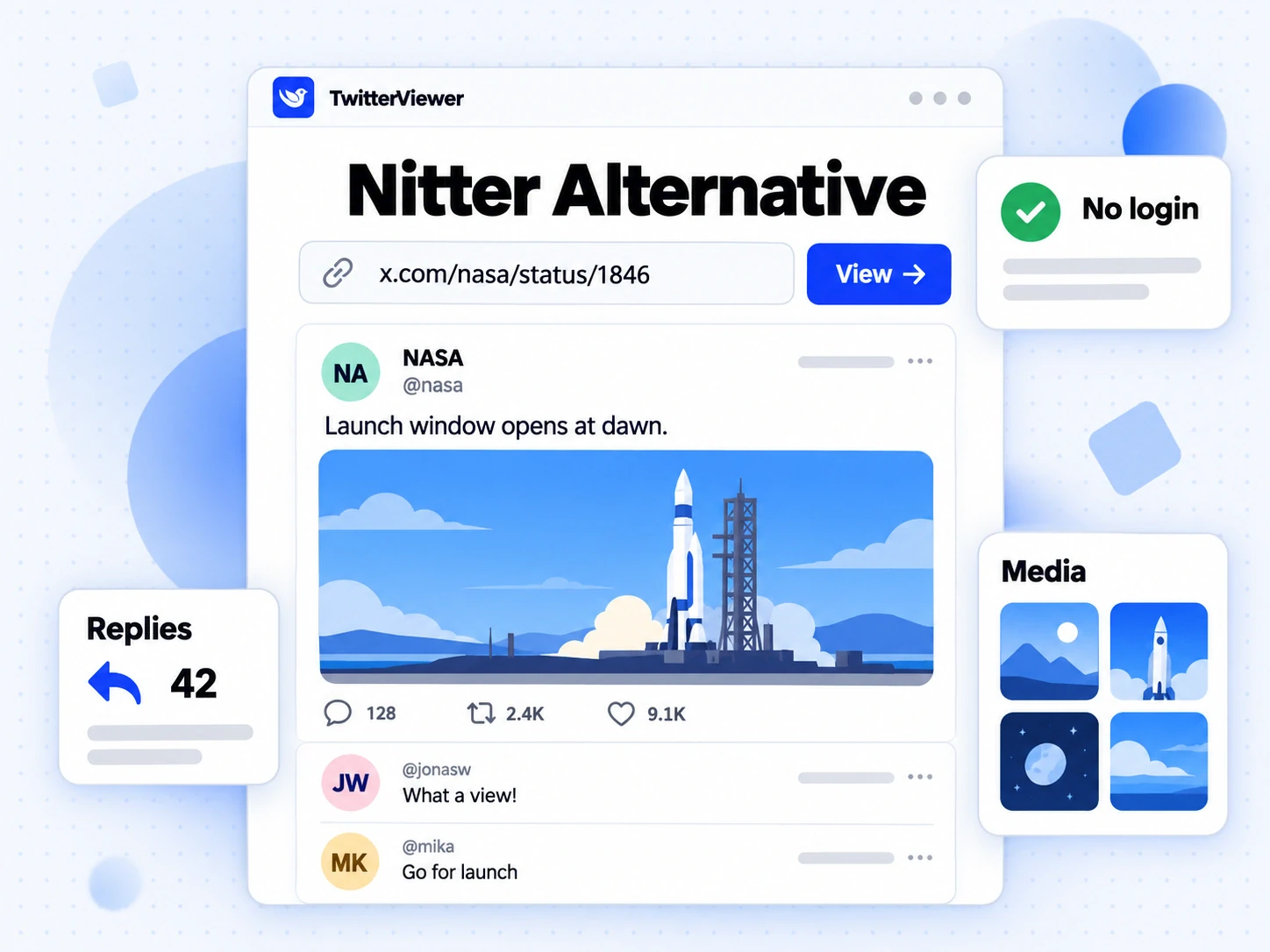
Thread Unroll: Read and Save Any X Thread
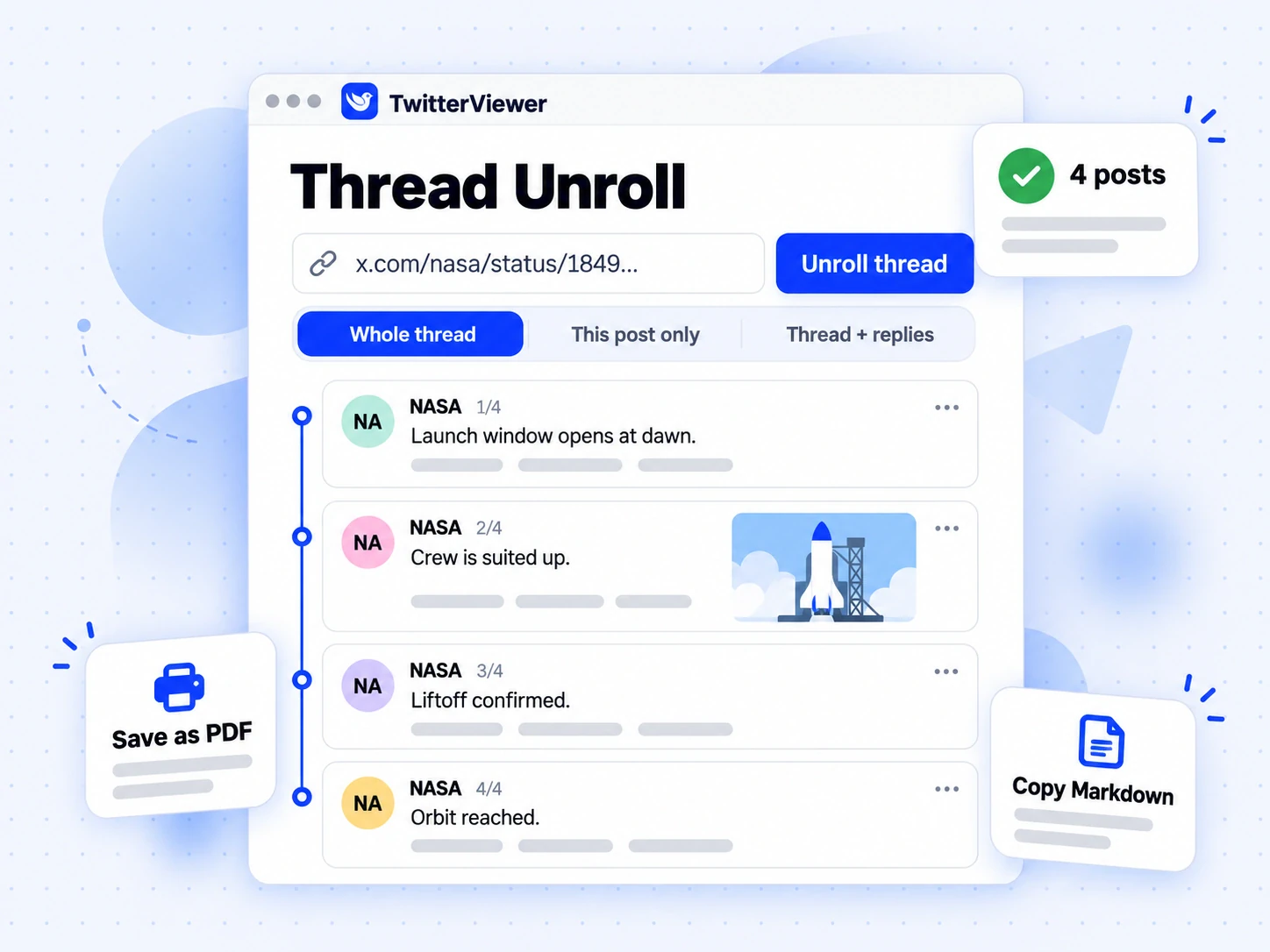
A thread unroll collects every post an author wrote in one X thread and shows them as one page you can read from top to bottom. With TwitterViewer you paste the link of any post from a public thread, press Unroll thread, and the posts appear in order with their images, links and dates. No X account is needed. This guide explains what a thread unroll is, why X threads are hard to read, how to unroll a thread in one step, and how to save a Twitter thread as Markdown or a PDF.
What is a thread unroll?
A thread unroll is the act of flattening a chain of posts into a single document. On X, a thread is a chain of posts by one author, each one replying to the one before. X shows that chain as a column of separate cards. A thread unroll removes the cards and keeps the story: the author's posts, numbered, in the order they were written.
A thread unroll has three stages: read the posts as one article, keep them as a Markdown note, a text file or a PDF, and reuse the text in your notes, an email or an AI assistant. TwitterViewer covers all three with three pages that share one link box and one daily allowance. Twitter Thread Reader is the page for reading. X to Markdown is the page for text you want to process. Twitter Thread to PDF is the page for paper-sized files. Every thread unroll starts with a link and ends with whichever output suits you.
Why are threads on X hard to read?
Threads are hard to read because X was built for a stream of short posts, not for long arguments. Thirty posts make one argument cut into thirty pieces, and the screen puts obstacles between them.
- Replies from other people sit between the author's posts, so your place is easy to lose.
- You do not know the length. Nothing says how many posts it has or how long it takes to read.
- Search only works on what has loaded. Your browser's find command skips posts that have not appeared yet.
- Links are shortened into
t.coaddresses, so a pasted copy hides where each link goes. - Posts can vanish. An author can delete one post or a whole thread, and the argument goes with it.
How do you unroll a thread in one paste?
A thread unroll needs only the link of one post. It does not have to be the first post.
- Copy the link. On x.com, copy the address from your browser's address bar. In the X app, tap the share icon under the post and choose Copy link.
- Paste it into the box on the Twitter Thread Reader page. The Paste button fills the box from your clipboard. Links from x.com, twitter.com and mobile.twitter.com all work.
- Press Unroll thread. The page loads the post, finds the rest of the thread and shows a short loading message while it works.
- Read. The thread appears as an article under the box, with a byline on top: the author's name and handle, the date, the number of posts and an estimated reading time.
A faster route: replace x.com with twitterviewer.app in the address of any post. The Open from X bookmarklet turns that swap into one tap.
Each post in the result is numbered, such as 3/12, so you always know where you are. Images are shown at full size, links are real addresses and quoted posts appear next to the post that quoted them.
Which posts does a thread unroll include?
A thread unroll includes the author's own run of posts around the post you linked, and nothing else by default. The thread unroll looks upward from your post through the author's earlier posts, then downward through their later self-replies, and stops where the author stops.
This one rule explains most of what you see:
- Paste the first, last or any middle post. The thread unroll gives the same result each time, because the chain is followed in both directions.
- Other people's replies are left out. They are conversation rather than narrative, so they stay out of the article unless you ask for them.
- A reply to someone else breaks the chain. If the author answered a stranger halfway through, the next post is not a reply to their own earlier post, so the thread ends or starts at that point.
- Quoted posts stay attached. They appear inside the post that quotes them, with the quoted author's handle and a link back.
The converter pages give you three scope choices, using the same words you see on screen:
| Scope | What you get | Use it when |
|---|---|---|
| Whole thread | The author's posts in order | You want to read or keep the argument |
| This post only | Exactly the post you linked | You want one post with its media and stats |
| Thread + replies | The author's posts, then the first page of replies from others | You want to see how people reacted |
Replies come from the same public data as the Twitter Reply Viewer, and only the first page is included. Replies count toward the number of posts returned, which matters for credits, covered below.
Thread unroll compared with other ways to keep threads
Before a tool does the work, most people reach for one of four habits. Each has a real cost.
| Method | What you keep | Where it falls short |
|---|---|---|
| Bookmark the thread | A pointer to X | The thread can be deleted, and a bookmark does not save the words |
| Screenshots | A set of pictures | You cannot search or copy the text, and long threads need many screenshots |
| Copy and paste | Plain text | Formatting, links and images are lost, and it is slow for thirty posts |
| Bot-based unrollers | A page, usually after you tag an account | They need an X account and a public reply, and the result lives on another site |
| Thread unroll on TwitterViewer | A page, a Markdown file, a text file or a PDF | Public threads only, and the author's posts only unless you add replies |
The main advantage of a link-based thread unroll is that it asks nothing of your X account. You do not log in, you do not tag a bot, and nobody is notified that you read the thread. The output is also a real file rather than a pointer, so deleted posts do not take your copy with them.
Why read a thread unroll instead of the timeline?
A thread unroll gives you four things that scrolling X does not.
- Your place. Posts are numbered and stacked with no replies in between, so you can close the tab and return later.
- The length up front. The byline shows the number of posts and the reading time.
- Search.
Ctrl+ForCmd+Ffinds a word across the whole thread, not just the posts that have loaded. - Exact quotes. Numbered posts make references easy, such as "the point in 14/31", and a link under each post goes back to the original.
How do you save a Twitter thread as Markdown?
To save a Twitter thread as Markdown, paste the link into X to Markdown, leave the scope on Whole thread and press Convert. The page returns the thread as a Markdown document that you can copy to the clipboard or download as a .md file.
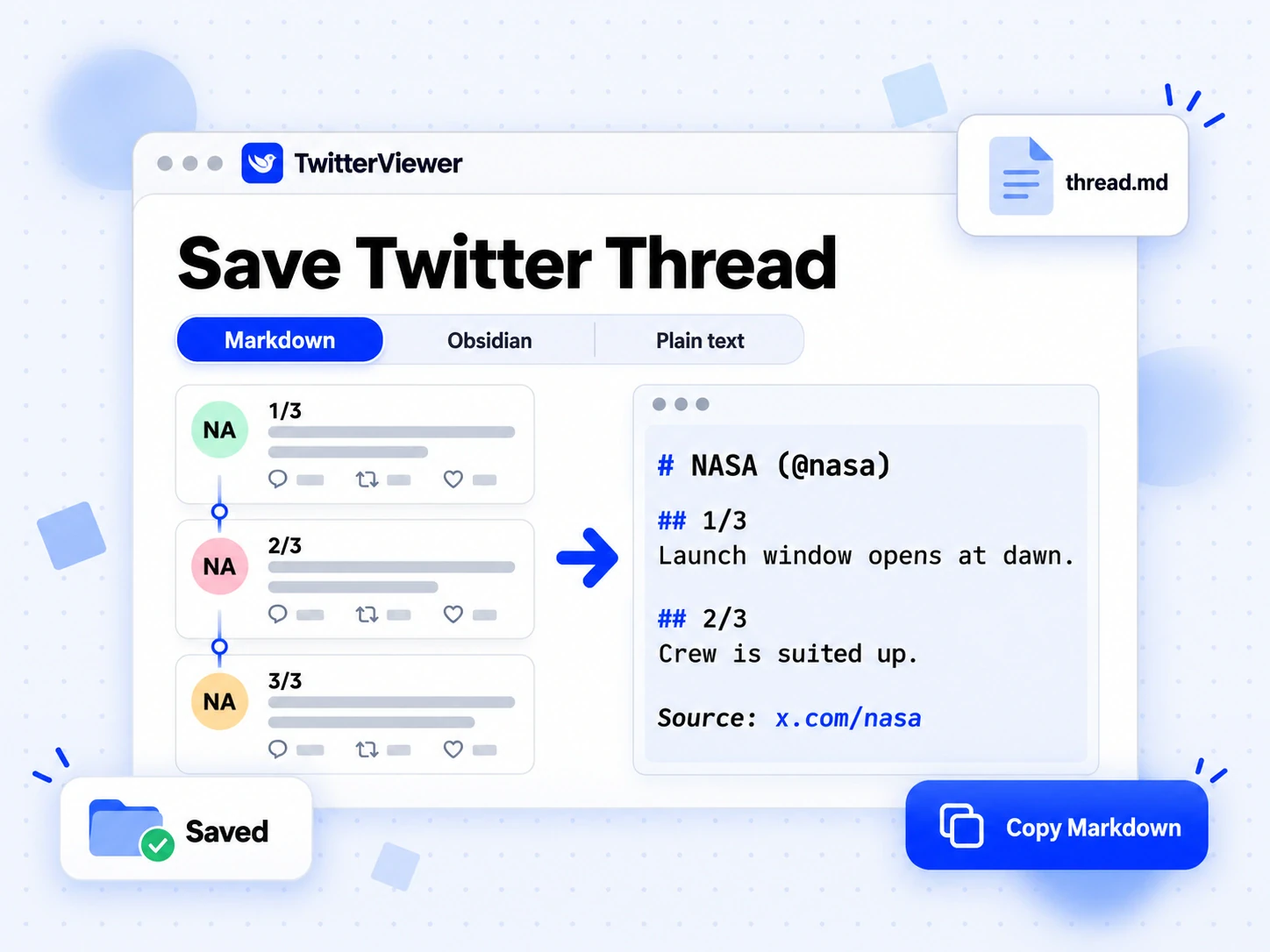
The layout is the same every time. The first line is a heading with the title, taken from the first line of the first post. Under it sits a byline with the author, the date, the number of posts and the source link. Each post then gets a numbered heading such as ## 2/3. Links are real addresses, photos point to the original-size file, and a quoted post becomes a block quote. Videos and GIFs become a link to the best MP4.
You can change three things before you copy the result:
| Control | Options |
|---|---|
| Scope | Whole thread, This post only, Thread + replies |
| Format | Markdown, Obsidian, Plain text |
| Stats | All posts, First post only, None |
The Obsidian format starts the note with a block of properties that Obsidian reads as metadata: the title, the source link, the author, the date, the number of posts and the tags x and twitter. Save the file into your vault and you can filter your saved threads by author or date. Notion, Logseq, Bear and most other note apps accept the default Markdown format.
Plain text strips every Markdown symbol and keeps a link under each post. It suits an email, a Word file or a message to a colleague who has never heard of Markdown. If you were searching for "twitter thread to text", this is the format you want.
Switching scope or format on a result you already fetched usually needs no new request. Leave stats on First post only or None when the text is going into a chat, because a number under every post adds length and little meaning.
Can you paste a thread unroll into ChatGPT or Claude?
Yes. AI assistants usually cannot open an X link, and pasting thirty separate posts by hand is slow. The result panel of X to Markdown has two shortcuts for this: Copy for ChatGPT and Copy for Claude. Each puts the Markdown on your clipboard with one sentence in front of it, "Below is the full content of an X thread. Answer based on all of it." Paste it into a new chat, add your question and send.
Two habits make the answers better. Put your question after the thread and name the output you want, such as a five-bullet summary or a table of claims to check. Then ask the assistant to cite post numbers: the numbered headings let it point to 14/31 when it makes a claim, which makes the answer easy to verify.
Gemini, Perplexity, local models and any other tool that accepts text can use the same Markdown through Copy Markdown. The Twitter MCP Server lets Claude Code, Cursor and Codex do the thread unroll themselves when you paste a link into the chat.
How do you download a Twitter thread as a PDF?
To download a Twitter thread as a PDF, paste the link into Twitter Thread to PDF, press Make PDF, check the preview, then press Save as PDF. Your browser's print dialog opens with only the thread on the page, and you choose PDF as the destination.

The file is made by your browser from a print-ready layout, so it works on any device with a modern browser. The text is real text that you can search and copy, not a picture of a web page.
Five settings control the page, and the preview updates as you change them:
| Setting | What it does |
|---|---|
| Paper | A4 or Letter |
| Images | Full-size images that are never split across a page break |
| Post links | A link back to X under each post |
| Stats | Likes, reposts and views |
| Replies from others | The first page of replies, off by default |
Use Letter in the United States and Canada and A4 almost everywhere else. Turn Replies from others on only if the replies are what you want to keep, because it fetches more data and counts as a new conversion.
Every file has a title, a byline with the author, date, number of posts and source link, then the numbered posts. Videos and GIFs appear as links, since a PDF cannot play them.
On a computer, choose Save as PDF as the destination in Chrome or Edge, or the PDF menu in Safari on a Mac. On an iPhone there is no Save as PDF button in the print sheet, but pinching out on the preview turns it into a full PDF view, and the share icon then saves it to Files. On Android, choose the PDF option in the printer selector.
Keep one habit in mind: a PDF is a snapshot. It shows the thread and its numbers as they were when you saved it. Add the date to the file name.
What does a thread unroll cost?
A thread unroll to read is free. Saving and converting use a small allowance with simple rules:
- 1 free save a day for everyone, with or without an account. A free save returns up to 25 posts; with no credits left, a longer thread returns its first 25 and the page says so.
- 1 credit per post returned after that. A 12-post thread costs 12 credits, and a quoted post counts as one more.
- Failed requests cost nothing, and the author's profile summary is free.
- A new account comes with 50 credits that do not expire.
Credits come from three places: the 50 on a new account, a monthly allowance on paid plans, and one-time packs that never expire.
| Plan | Price per month | Credits per month |
|---|---|---|
| Plus | $10 | 3,000 |
| Pro | $20 | 8,000 |
| Business | $50 | 25,000 |
Credit packs are $5 for 1,000 credits, $20 for 6,000 and $50 for 20,000. Yearly billing is available on every plan, and the pricing page lists everything. The same credit balance covers the web pages, the API, the MCP server and the command line. Opening a post, a profile or replies in the viewer follows a separate daily viewing allowance and does not use credits.
Is a thread unroll private?
Yes, as far as your X account goes: a thread unroll here never touches it. The request comes from TwitterViewer's servers, not from your browser or your X session. Nothing is posted, liked or followed, the author is not notified, and the page never asks for your X password or cookies. It reads public posts only. The guide to viewing X posts without logging in explains how that works.
What can a thread unroll not do?
Some limits come from X, not from any tool, and they apply to every thread unroll you will find.
- Protected accounts. Their posts are visible only to approved followers. That thread cannot be unrolled, and no trick gets around the setting.
- Deleted and suspended content. Once X stops serving a post, it is gone. If the first post was deleted but the rest survive, you get the surviving posts, starting where the chain now starts.
- Direct messages and private lists. These never leave your own logged-in session.
- X Articles. The long-form body of an article is not converted yet. For a link to an article you get the post that shares it.
- Video. Markdown and PDF contain a link to each video, not the clip. Use the Twitter Video Downloader to keep the file.
- Replies beyond the first page. The replies option returns the first page of replies from the public data.
- Freshness. X data is cached for a short time, usually a few minutes, so a post written a moment ago can take a little while to appear.
Can you run a thread unroll from code?
Yes. Everything above also runs without a browser. The REST API takes a post link and returns the thread as Markdown, plain text or JSON. On the Pro and Business plans it can also return a PDF file, rendered on our side so no browser is needed on yours. An AI agent connected to the MCP server can run a thread unroll by calling one tool, and npx twitterviewer <link> prints the Markdown to your terminal.
All four routes share one credit balance. The Twitter API page introduces the endpoints, and the API docs list every parameter, response header and error code.
Thread Unroll FAQs
What does thread unroll mean?
Thread unroll means turning a thread on X into one continuous page. A thread is a chain of posts by one author, and unrolling it collects those posts and shows them in order, numbered, with their images and links. TwitterViewer's version works from a link, then lets you save the result as Markdown, plain text or a PDF.
How do I do a thread unroll on X?
Copy the link of any post in the thread, paste it into the box on the Twitter Thread Reader page and press Unroll thread. The page finds the author's whole chain of posts and shows it in order. You do not need an X account, and you do not have to tag a bot or reply to anyone.
Can I unroll a thread if I only have the last post?
Yes. Paste the link of the last post or any post in the middle. The tool follows the chain upward through the author's earlier posts and downward through their later ones, so you get the same thread whichever post you start from.
How do I download a Twitter thread?
Paste the link into X to Markdown to download a .md or .txt file, or into Twitter Thread to PDF to save a document. Both keep the posts in order with links and images. Videos are linked rather than included, so use the Twitter Video Downloader for the clip. A save is free once a day for up to 25 posts, and costs 1 credit per post after that.
How do I save a Twitter thread?
Use X to Markdown to save a Twitter thread as a note, with Obsidian properties if you want them, or Twitter Thread to PDF to save it as a document. Either way the posts stay in order, and the first save each day is free.
How to save a Twitter thread as a PDF?
Open the Twitter Thread to PDF page, paste the link and press Make PDF. Check the preview, press Save as PDF and choose PDF as the destination in your browser's print dialog. The steps work on a computer, an iPhone and an Android phone, with small differences in the print dialog.
Is there a thread unroll for Obsidian?
Yes. Choose the Obsidian format in X to Markdown and the note starts with properties for the title, source, author, date, post count and tags. Save the file in your vault and you can filter your saved threads by those fields.
Does thread unroll include replies from other people?
Not by default, because replies are conversation rather than part of the thread. Choose Thread + replies in X to Markdown, or turn on Replies from others in the PDF settings, to add the first page of replies. They count toward the number of posts returned.
Does a thread unroll work for protected accounts or deleted threads?
No. Only public posts can be unrolled. Threads from protected accounts, deleted posts and suspended accounts cannot be converted, and failed requests are not charged. The tool never asks for your X password or cookies.
Is thread unroll free?
Reading and the first save of the day are free, for up to 25 posts, with or without an account. After that each returned post costs 1 credit. New accounts get 50 credits, and plans start at $10 a month. The pricing page lists all plans and credit packs.
Does the author know that I unrolled their thread?
No. The tool reads public posts and does not post, like, follow or message anyone, and it does not use your X account. The author gets no notification.